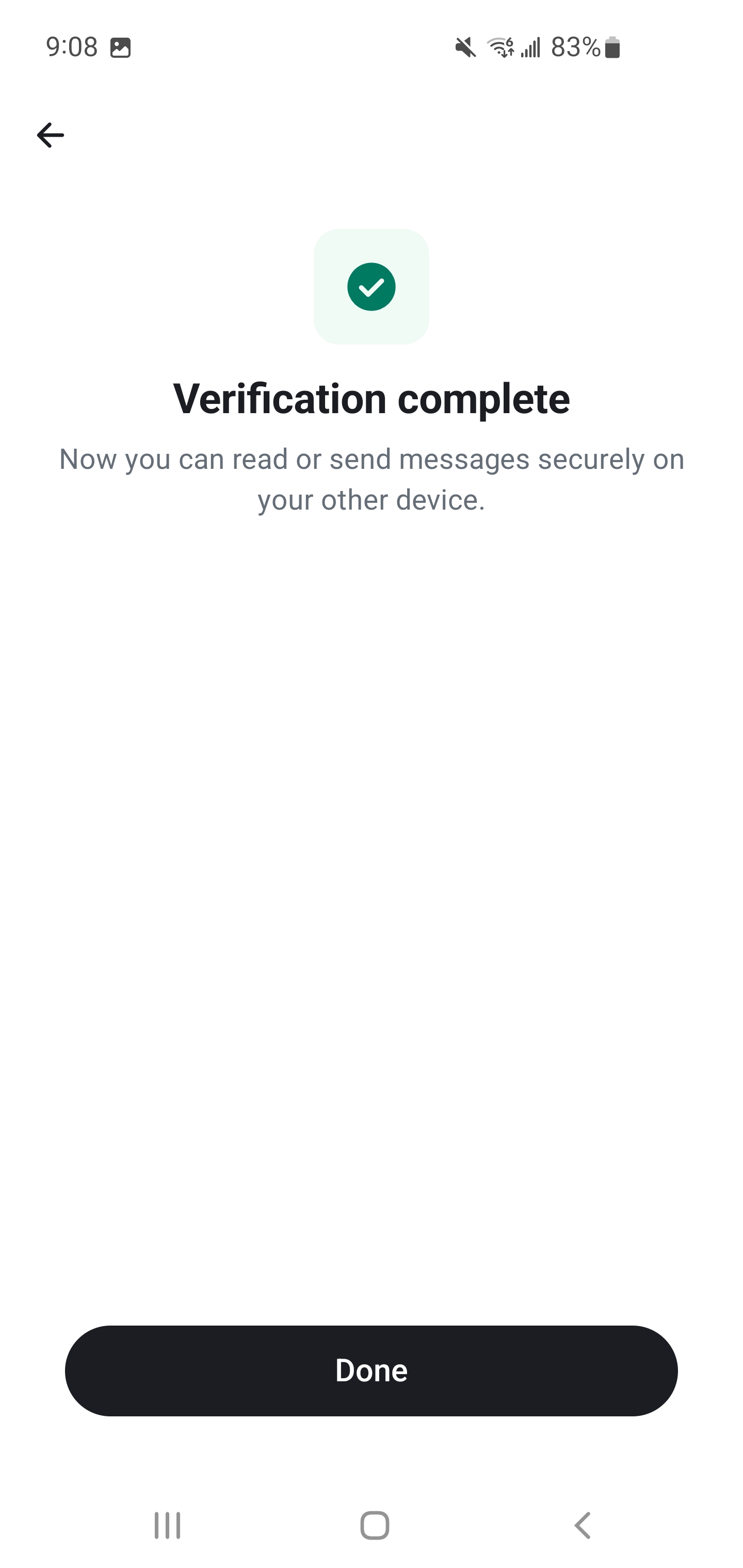
When you sign in on a new device, Matrix asks you to verify it from a device you're already signed in on. This proves it's really you — and gives the new device access to your encrypted message history.
Open Element X BEFORE Signing in on a New Device
Make sure Element X is open on a device where you're already signed in, then go ahead and sign in on your new device.
Accept the Request
A verification request will appear on Element X on your already-signed-in device.
- On your other device, you'll see a "New Verification Request!" notification. Tap it.
- Tap Start Verification.
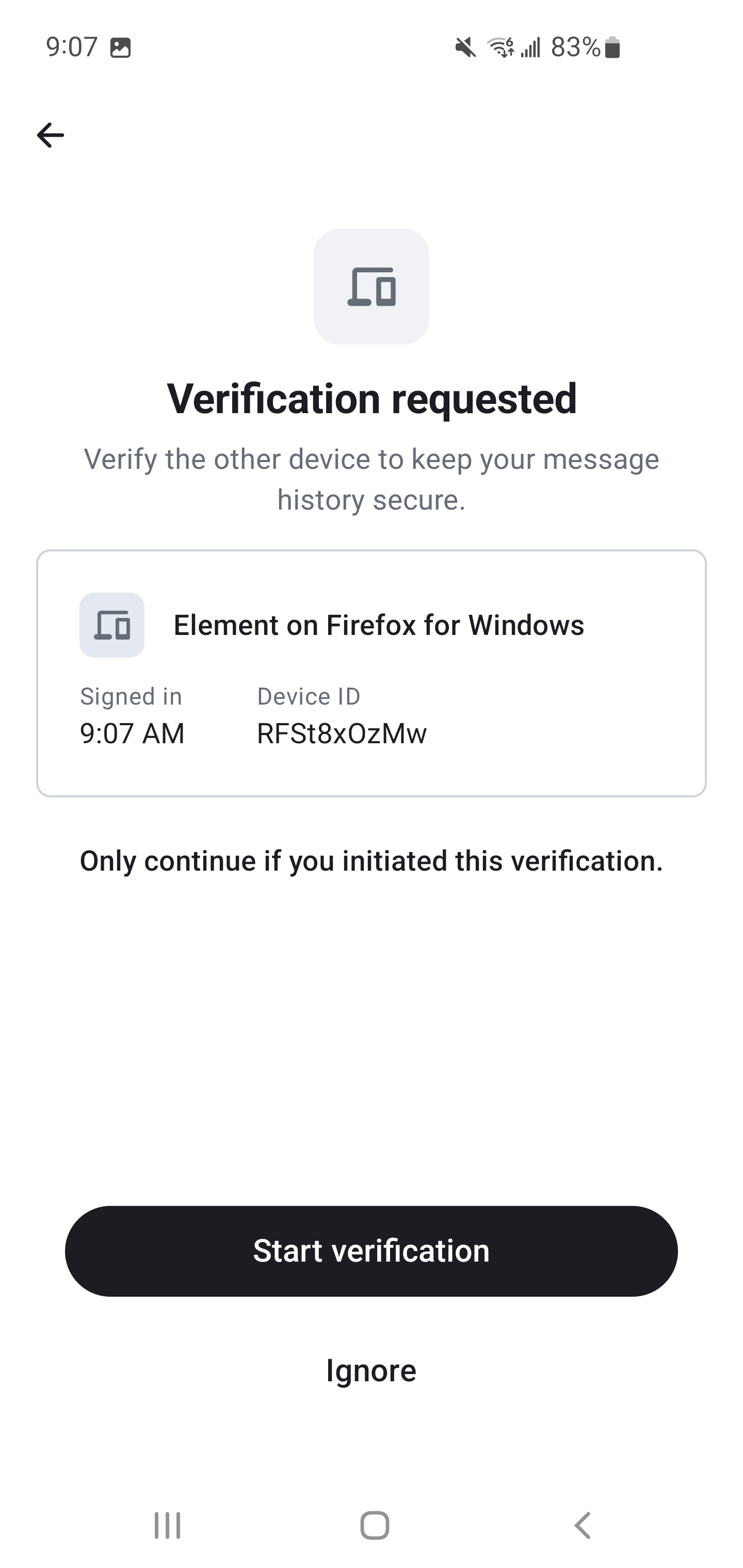
- Element X will tell you to continue on the other device — switch to your new device and follow the prompt there.
Compare the Emojis
Both devices will display a set of emojis. They must match exactly.
- Look at the emojis shown on both screens. Compare them carefully.
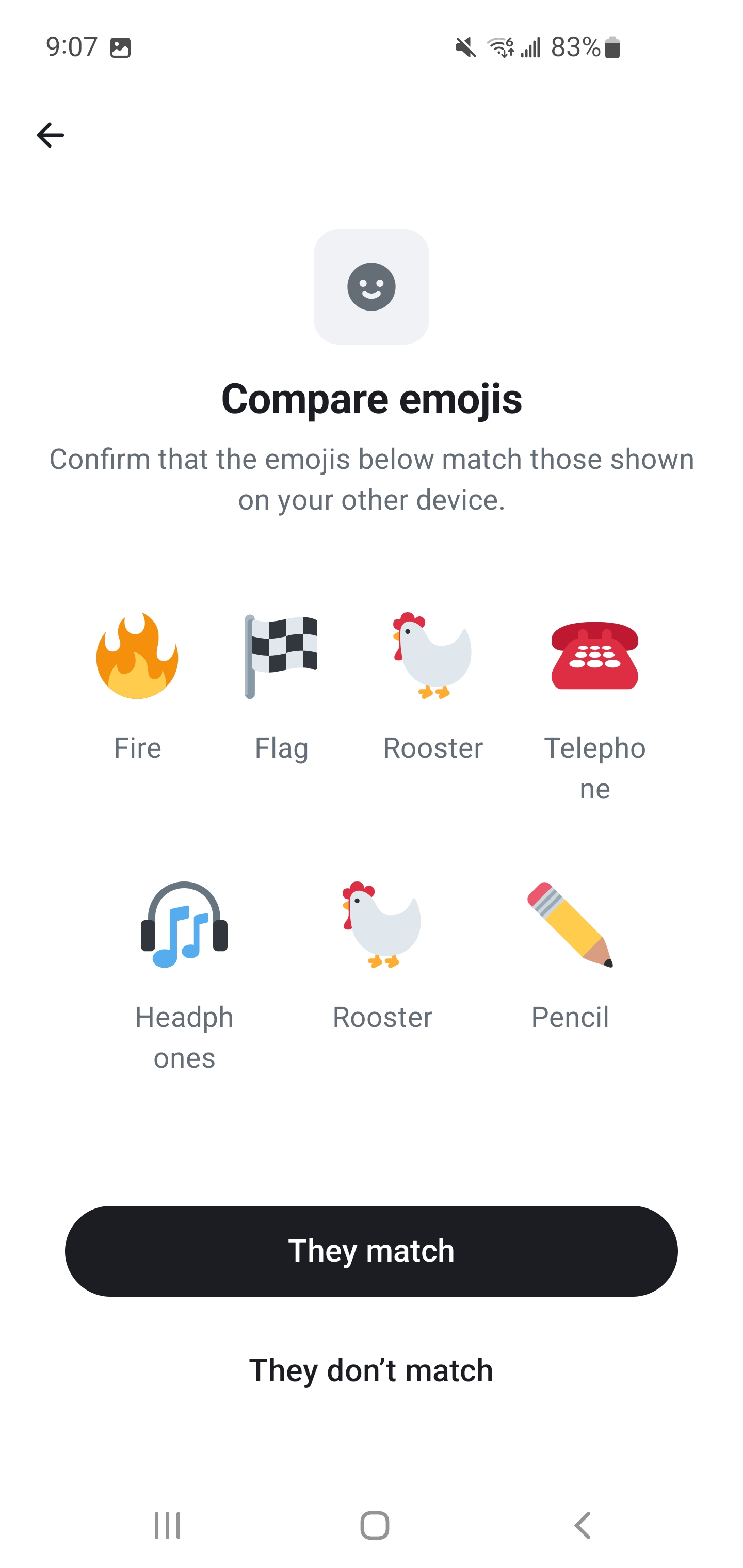
- If they match, tap They Match on both devices.
If the emojis are different, do not confirm. This could mean someone else is trying to access your account. Cancel the verification and investigate.
Done
That's it. Your new device is verified and will now have access to your encrypted message history.